
AI assistants like Claude can help you build accessibility into your everyday work, from describing images to fixing errors flagged by accessibility checkers. You don’t need to be an accessibility expert. You just need to know what to ask for and how to check the results.
Before You Start
A few ground rules keep your work secure and your results reliable.
Use your Syracuse account. Claude Enterprise is available at no cost to every student, faculty, and staff member. Sign in with your Syracuse email address, because personal accounts aren’t covered by the University’s agreement and shouldn’t hold University data. See the Responsible AI Guidelines for details.
Always review the results. AI can misread details, invent information, or leave content out. You know your content’s purpose best, so treat AI output as a first draft and keep checking your work with tools like Ally for course content or WAVE or ANDI for websites.
AI tools are not full remediation tools. You can use AI to address specific accessibility barriers to get towards accessible versions, but cannot (today) reliably use it to convert an inaccessible document into a fully accessible document.
Getting Good Results
AI works best when you share your content, explain the context (who it’s for and where it will appear), and review what comes back. Reference the following table for examples of substantial AI chat prompts:
| Instead of | Try |
|---|---|
| “Write alt text for this.” | “This photo goes on our webpage announcing a new peer tutoring program. Write one sentence of alt text that conveys what’s relevant.” |
| “Fix this PDF.” | “Convert this PDF into an accessible Word document. Keep all original text and use real headings and lists.” |
| “What does this error mean?” | “Ally flagged this in my Blackboard course. Explain it in plain language and tell me how to fix it in Blackboard Ultra.” |
Four Ways AI Can Help
Most everyday accessibility tasks fall into one of four categories:
- Describe: Write alt text and text alternatives for images, charts, and diagrams
- Convert: Turn inaccessible PDFs, scans, and images of text into more accessible formats
- Improve: Strengthen headings, links, lists, and readability
- Understand: Get plain-language explanations of accessibility errors and how to fix them
Describe Visual Content
Images, charts, and diagrams need text equivalents so screen reader users get the same information. AI can draft these quickly, and you refine them. Learn the basics on our Alternative Text page.
Example Image:
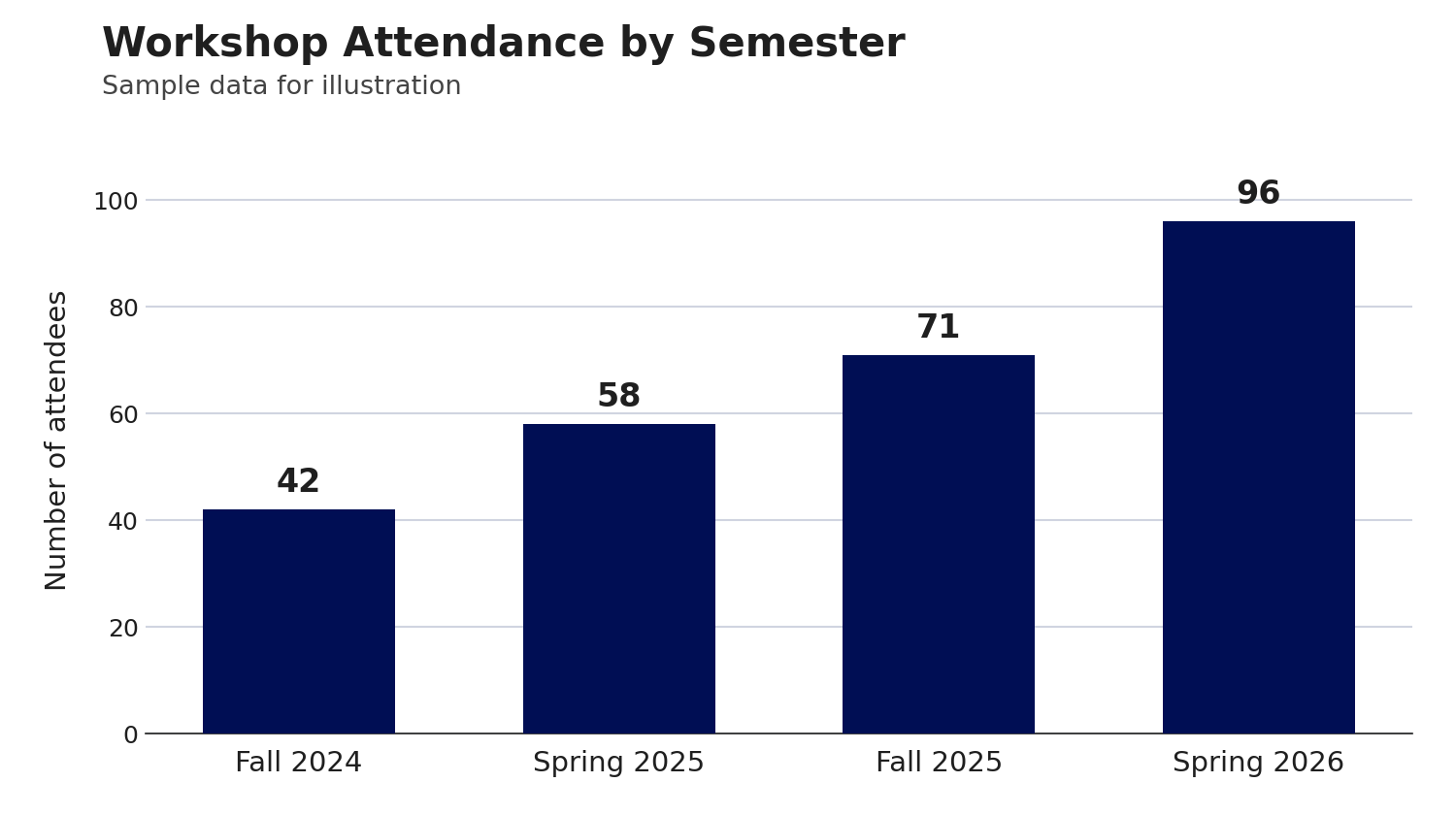
Example Claude Prompt: “This chart is for our annual report. Provide brief alt text, a short paragraph describing the key trends, and a data table of the values.”
Acceptable Alt Text: “Bar chart showing workshop attendance rising each semester from Fall 2024 to Spring 2026.”
Acceptable Text Description: “Workshop attendance rose every semester, more than doubling from 42 in Fall 2024 to 96 in Spring 2026. The largest increase came in the most recent semester, rising from 71 in Fall 2025 to 96 in 2026.”
Text-based Equivalent (table format):
| Semester | Attendance |
|---|---|
| Fall 2024 | 42 |
| Spring 2025 | 58 |
| Fall 2025 | 71 |
| Spring 2026 | 96 |
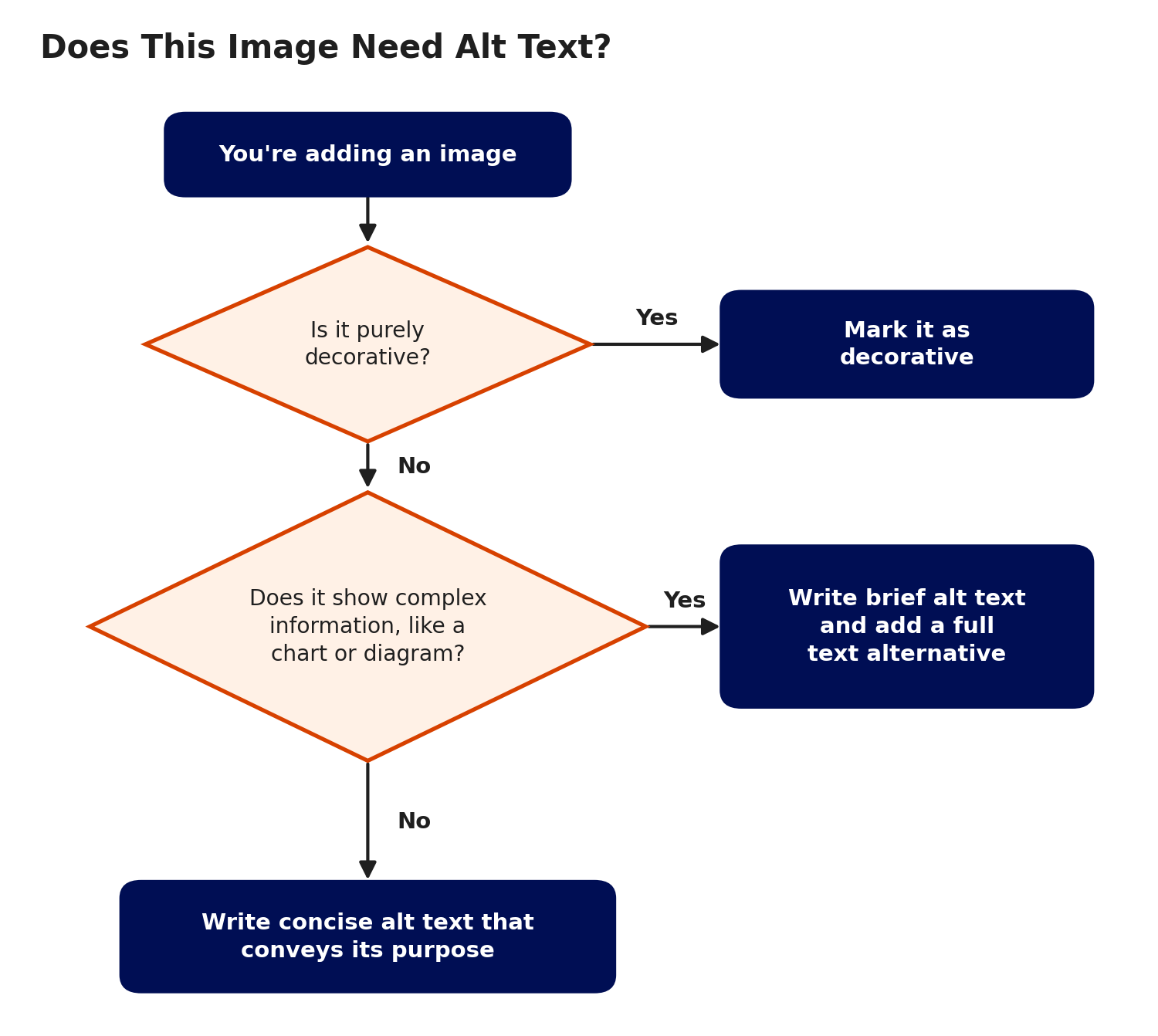
Acceptable Alt Text: “Flowchart showing how to decide what kind of alt text an image needs.”
Acceptable Text alternative:
Step 1: Is the image purely decorative? If yes, mark it as decorative. If no, go to Step 2.
Step 2: Does it show complex information, like a chart or diagram? If yes, write brief alt text and add a full text alternative. If no, write concise alt text that conveys its purpose.
Convert Inaccessible Formats
Content locked inside a scan, an image, or an untagged PDF can’t be read by screen readers. AI can pull that content out and rebuild it with real structure.
A screenshot of a table looks fine on screen, but screen readers can’t read the information inside it.
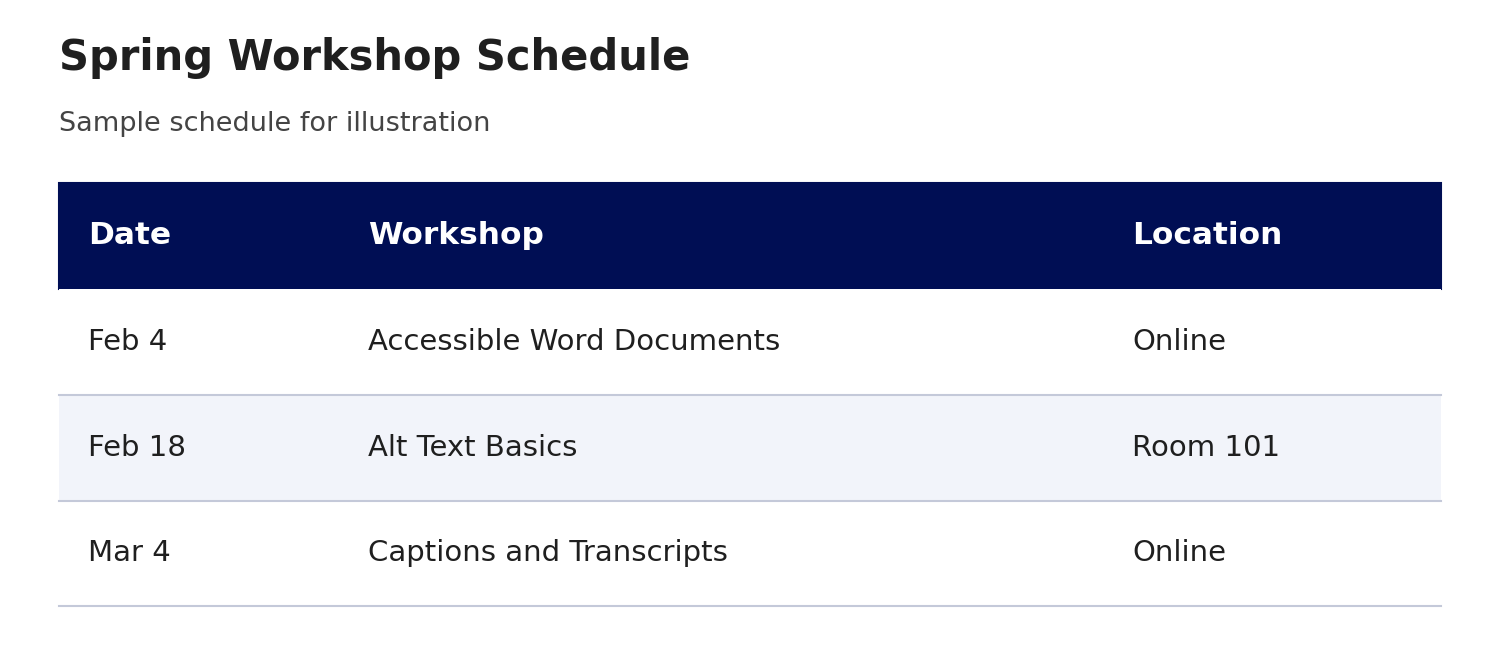
Example Prompt: “Recreate this image as a real table with a header row.”
Acceptable Result:
| Date | Workshop | Location |
|---|---|---|
| Feb 4 | Accessible Word Documents | Online |
| Feb 18 | Alt Text Basics | Room 101 |
| Mar 4 | Captions and Transcripts | Online |
Note: If the PDF itself must be accessible, such as a fillable form, choose professional remediation, such as by Allyant Remediation Services, over automated conversion.
Improve Your Writing and Structure
Whether you’re drafting an email, a syllabus, or a webpage, AI can review your content and suggest more accessible structure and wording.
| Accessibility Check | Before | After |
|---|---|---|
| Using Descriptive Links | “(Link) Click here to register. For the agenda, (link) click here.” | “(Link) Register for the workshop. View the (link) workshop agenda.” |
| Applying Headings Styles | Section titles made with large, bold text | Section titles using Heading 2 styles |
| Using Real Lists | “Log in, open the form, attach your file, and select Submit.” | A numbered list with one step per line |
| Using Plain language | “Pursuant to University policy, attendees are required to register in advance.” | “University policy requires everyone to register in advance.” |
Understand Accessibility Errors
Checkers like Ally, WAVE, and ANDI flag issues, but their explanations can be technical. AI can translate an error into plain language and walk you through the fix in the tool you’re using.
Example Prompt: “Ally flagged ‘The HTML content contains images without a description’ on my Ally Accessibility Report. What does this mean in plain language, and how do I fix it?”
Example Response: “In the context of your Blackboard Ultra course content, this means an image was found to be missing alt text in a document you created within Blackboard Ultra. For guidance on fixing it right within Blackboard, visit Ally Quick Fixes.”
Coming soon…
One of the many ways Claude helps us in our everyday tasks is by supporting the creation of new content and the review of existing content. To make sure that content is accessible from the start, the Digital Accessibility Services team is developing a small suite of Claude accessibility skills for use across the University. These skills are being designed to help Claude create more accessible websites, Word documents, and PowerPoint slides. Stay tuned for more information.
Get Support
Questions about using AI for accessibility? Contact the ITS Digital Accessibility Services team at accessibleIT@syr.edu, or visit our Digital Accessibility Office Hours.
For help with your Claude account, email aihelp@syr.edu.