Using PDF files is generally not recommended, because making them accessible can be a highly technical and time-consuming exercise. PDF files should only be used when maintaining the formatting of a document is essential.
When exporting to PDF from Microsoft Office files (e.g., Word, PowerPoint), it is important to use the correct conversion options in order to retain any accessibility information that you add to the original Word, Excel, or PowerPoint file. The following outlines the steps to guide the correct way to export as an accessible PDF file on Windows and Mac.
Windows: Save As PDF in Office
- If the file was previously saved, select File then Save a Copy. If the file is unsaved, select File then Save As.
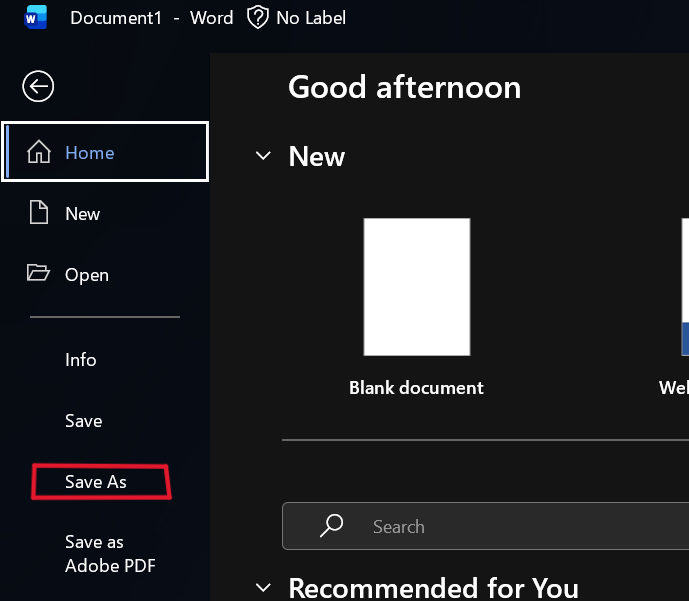
- Select Browse to choose the location on your computer where you want to save the file.
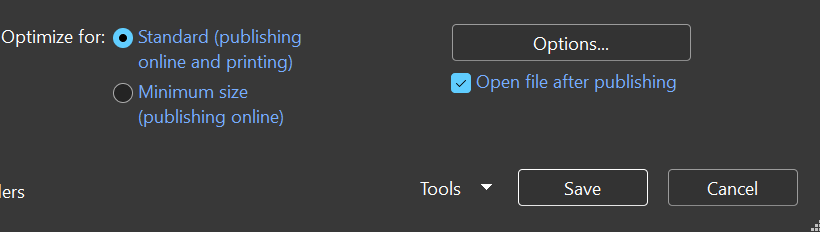
- In the drop-down list, select PDF.
- Select More Options then the “Options…” button.
- Check the box for “Document structure tags for accessibility.”
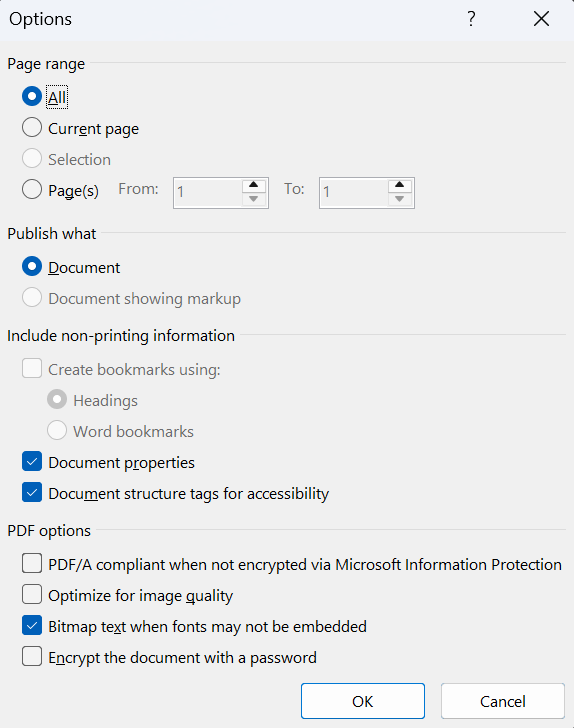
- Select OK or Save.
Mac Users: Save As / Export to PDF
- Select File.
- Choose Save As.
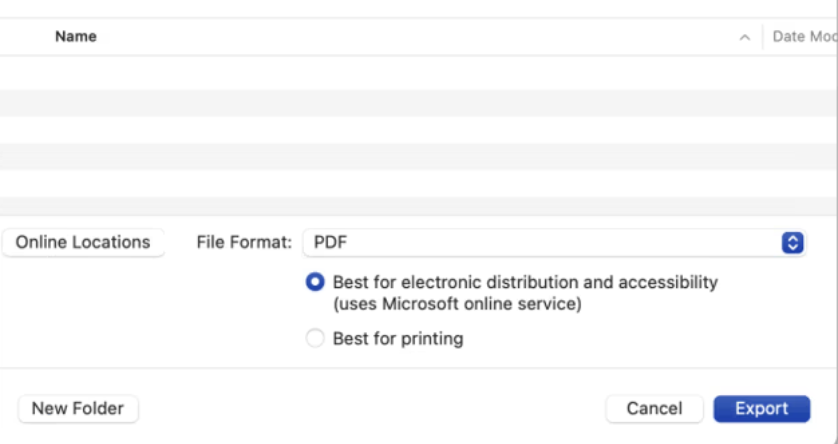
- Select “File format” at the bottom of the window.
- Choose PDF from the list of available file formats.
- Give your file a name if it doesn’t already have one, then choose Export.
Quick Tips
Avoid using the “Print” then “Save as PDF” conversion option. This method assumes that your goal is to print the document and does not carry any accessibility over from the accessible Microsoft file. Consequently, the resulting PDF will not be accessible.
Similarly, On Mac, when using the “Best for printing” option in the File format, the hyperlinks in your document may not convert correctly. Instead, select the option, “Best for electronic distribution and accessibility.”